
Pickle AI
Freemium ✓ VerifiedPickle AI is an AI video deepfake tool that lets users appear on Zoom, Google Meet, and Teams calls as a realistic AI-animated avatar of themselves.
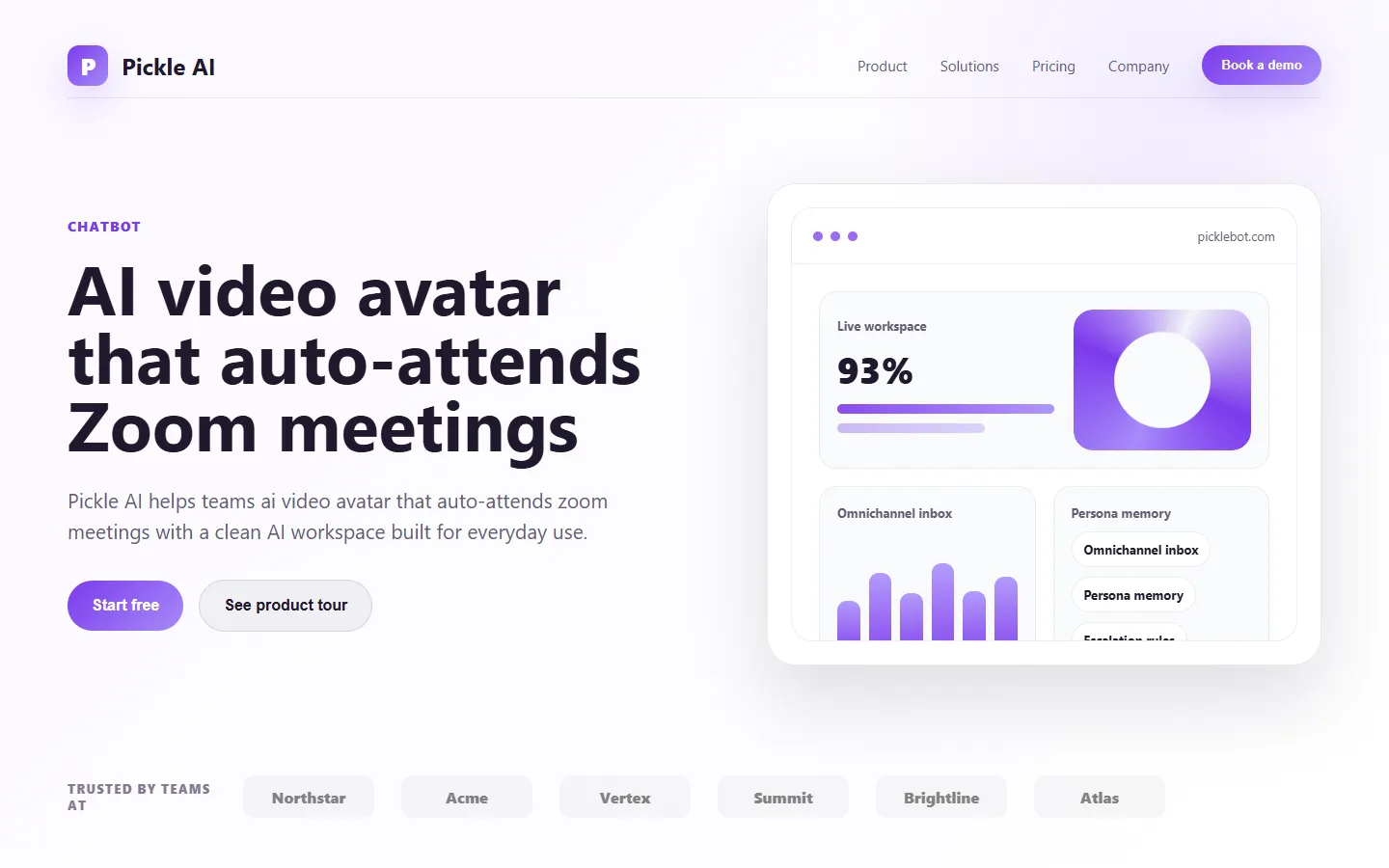
📋 About Pickle AI
Pickle AI is a desktop application that lets users attend video meetings on Zoom, Google Meet, Microsoft Teams, and other platforms as a photorealistic AI-animated version of themselves. After a one-time enrollment process where the user records a short video of their face under various angles and lighting conditions, Pickle AI can generate a live avatar that mirrors the user's real head movements, mouth shapes, and expressions during meetings. The avatar looks and sounds like the user but removes the need to be on camera in a presentable way at all times.
The product is marketed toward remote workers who want the social presence of being on camera without the effort of styling hair, dressing up, or showing off a messy home office. Pickle AI includes features like background customization, expression smoothing, and the ability to stay on camera while physically away for short periods. Audio runs from the user's actual microphone, so conversation remains authentic — only the visual is synthesized. The product's branding leans playful and emphasizes convenience over deception.
Pickle AI is used primarily by remote-first professionals, founders, content creators, and anyone who spends significant parts of the day in video meetings. It raises legitimate questions about authenticity norms in professional meetings, and Pickle AI generally recommends disclosing use of the avatar with colleagues. It competes with virtual camera tools like mmhmm and video filters in Zoom and Teams, differentiating through the realism of the AI-driven face animation rather than static filters or overlays.
⚡ Key Features of Pickle AI
Photorealistic AI Avatar
Pickle AI generates a live AI avatar that closely resembles the user after a short enrollment video. The avatar mirrors head movements, expressions, and mouth shapes, producing a convincing sense of presence on video calls while freeing the user from needing to be camera-ready.
Virtual Camera Integration
The app exposes its output as a virtual camera that any video conferencing tool can select — Zoom, Google Meet, Microsoft Teams, Slack huddles, and more. This means no special client is needed on the meeting platform side; users just pick the Pickle camera from the standard settings menu.
Live Expression Tracking
Facial movement is tracked in real time from the user's webcam so the avatar moves when they move, smiles when they smile, and blinks when they blink. This preserves the social signaling of being on camera without requiring the user to look polished or be in a specific location.
Background Customization
Users choose from built-in backgrounds or upload their own to sit behind the avatar, similar to virtual backgrounds in Zoom but handled at the source rather than through the meeting platform. This removes the flickering and edge artifacts common to Zoom's green-screen replacement.
Avatar Smoothing and Enhancement
Pickle AI applies subtle smoothing and lighting corrections to the generated avatar, producing a clean, professional appearance even under poor webcam lighting. Users can optionally adjust the level of enhancement or keep the avatar closer to their natural look.
Privacy-Conscious Operation
The avatar is rendered on the user's machine and does not require streaming raw webcam footage to external servers during calls. This limits exposure of the user's real-time appearance and makes the tool viable in privacy-sensitive work settings where cloud processing of video would be problematic.
🎯 Use Cases for Pickle AI
⚖️ Pickle AI Pros & Cons
Advantages
- ✓Surprisingly realistic for a commercial consumer tool
- ✓Works across all major video conferencing platforms
- ✓Reduces the daily cost of being camera-ready
- ✓Virtual camera approach integrates without meeting-side changes
- ✓Preserves real voice and real-time interaction
Drawbacks
- ✗Raises authenticity questions in professional contexts
- ✗High-end realism requires decent GPU
- ✗Not all expressions track perfectly under poor lighting
📖 How to Use Pickle AI
Download Pickle AI from picklebot.com and install on your desktop.
Complete the enrollment process by recording a short video of your face under varied angles.
Wait for the model to finish training your personalized avatar.
Open Zoom, Meet, or Teams and select the Pickle virtual camera in the video settings.
Adjust backgrounds, lighting, and smoothing to taste before each call.
Consider disclosing use of the avatar to colleagues to maintain trust.
❓ Pickle AI FAQ
Pickle AI offers a freemium tier with basic functionality and limits. Paid plans unlock higher resolution, advanced features, and extended usage time.
Pickle AI works with any meeting platform that supports virtual cameras, including Zoom, Google Meet, Microsoft Teams, Slack huddles, and many others.
That depends on context. Pickle AI generally recommends disclosing use of the avatar to colleagues to maintain trust. Using it without consent in sensitive contexts like legal or medical meetings could raise real ethical concerns.
A reasonably modern computer with a dedicated GPU will produce the best results, though Pickle AI can run on less capable machines at reduced quality.
Related to Pickle AI

15.ai
15.ai is a free AI voice cloning tool famous for generating realistic speech from cartoon, video game, and animated show characters using as little as 15 seconds of source audio.

A2E AI
A2E AI productivity platform converts audio and video recordings into transcripts, summaries, and action items with speaker identification.

Abby AI
Abby AI is an AI therapy and mental wellness chatbot that offers CBT-informed conversations, mood tracking, and self-guided coping tools.

Abnormal AI
Abnormal AI uses behavioral AI to detect business email compromise, account takeover, and socially engineered phishing that bypasses secure email gateways.
Featured on WhatIf.ai
Add this badge to your website to show you're listed on WhatIf AI
Alternatives to Pickle AI
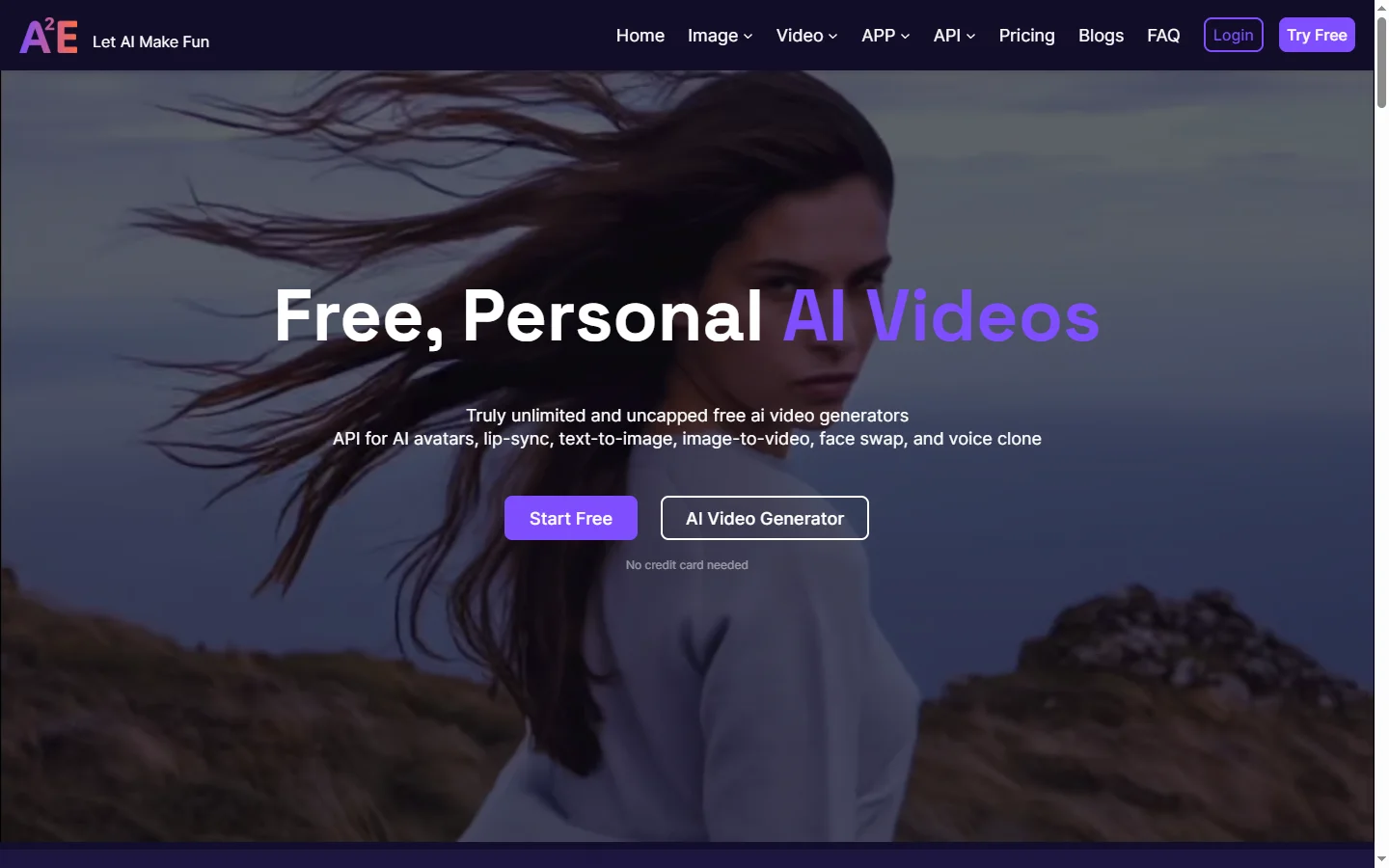
A2E AI
A2E AI productivity platform converts audio and video recordings into transcripts, summaries, and action items with speaker identification.
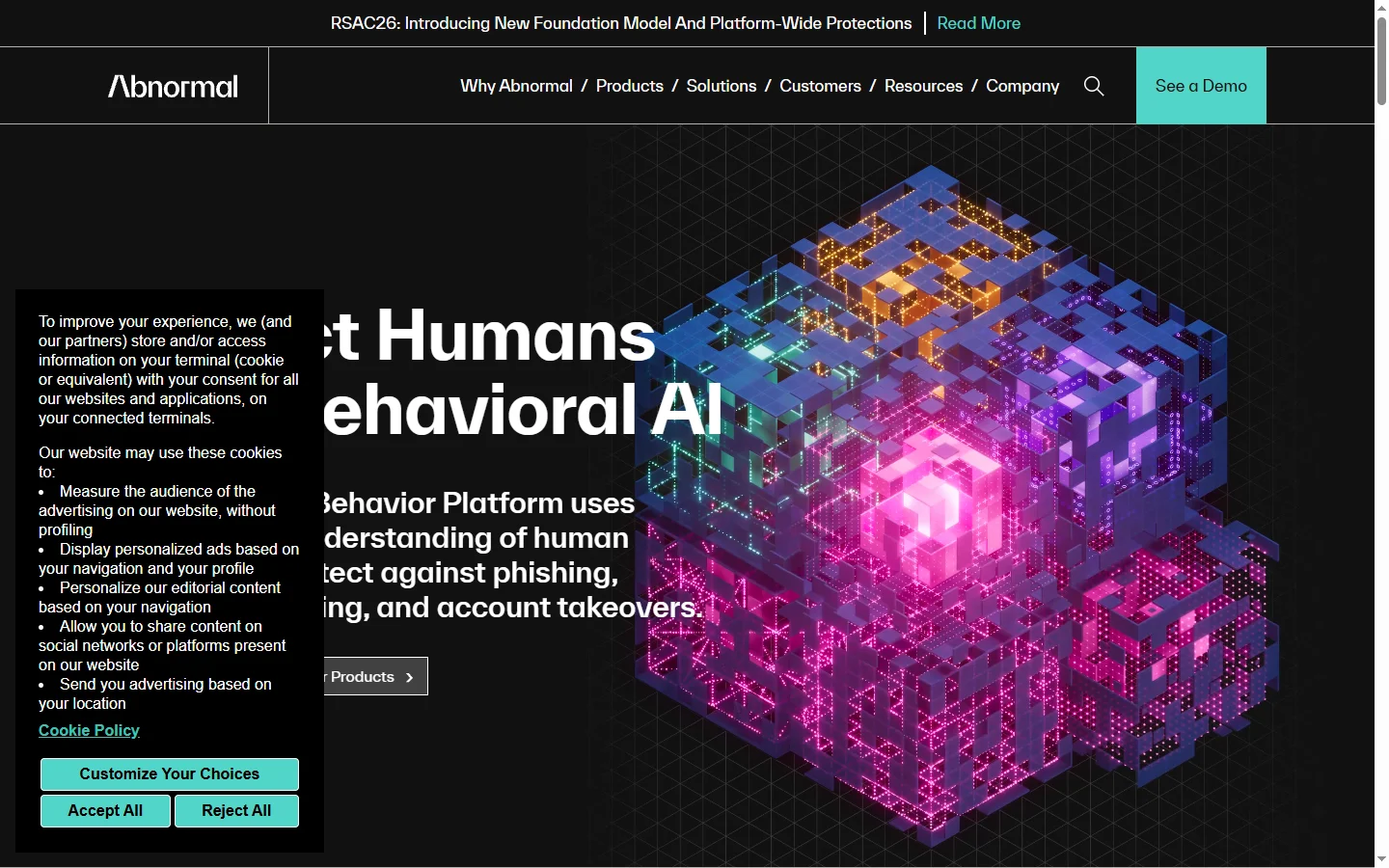
Abnormal AI
Abnormal AI uses behavioral AI to detect business email compromise, account takeover, and socially engineered phishing that bypasses secure email gateways.
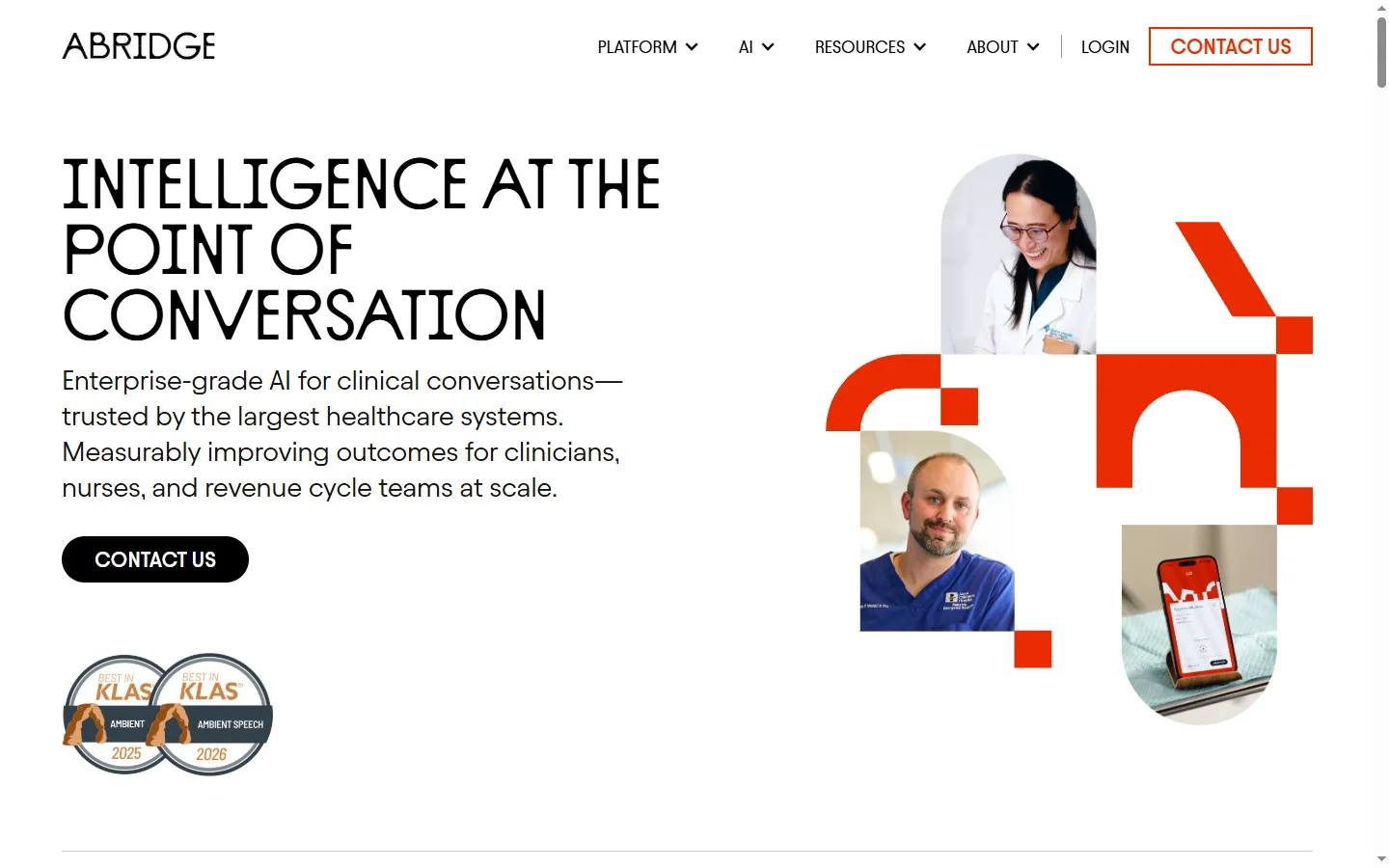

Abridge AI
Abridge AI medical documentation platform that records and summarizes clinical conversations into structured physician notes in real time.

Air AI
Air AI conducts autonomous full-length AI phone calls for sales prospecting, appointment setting, and customer service without human agents.