
Alex AI
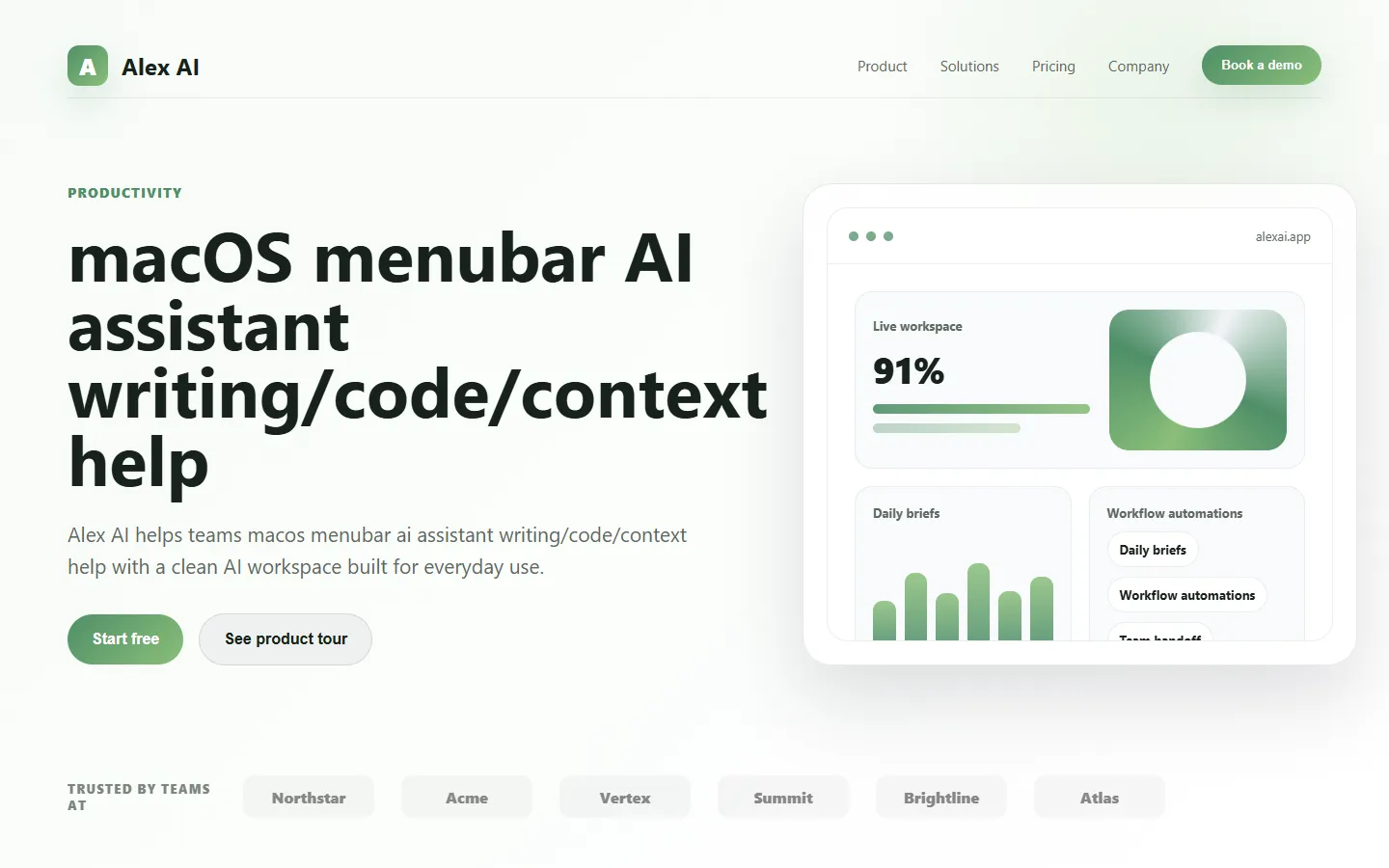
Freemium 🔥 TrendingAlex AI is a macOS AI assistant that lives in your menu bar, offering instant writing help, code assistance, and context-aware productivity features.
📋 About Alex AI
Alex AI is a macOS-native AI assistant that lives in the menu bar and provides instant writing help, code assistance, and context-aware productivity features across every application. Designed as an always-available companion rather than a separate web app, Alex AI lets Mac users trigger AI help with a keyboard shortcut from any text field, email, document, or editor without copying and pasting between apps. The product emphasizes speed, deep macOS integration, and respect for user privacy.
The assistant uses a mix of local and cloud AI models depending on the task, applying lightweight on-device models for common quick actions like grammar cleanup and larger cloud models for complex writing or coding tasks. Users can choose which models to enable based on their privacy preferences and performance needs. Custom prompts, saved commands, and app-specific automations let power users tailor Alex AI to their individual workflow without needing to learn new interfaces beyond the menu bar trigger.
Alex AI serves Mac users including professionals, developers, writers, and students who want frictionless AI help integrated into their daily workflows rather than another tab to switch to. The product appeals particularly to users who value native-feeling software over browser-based tools and who appreciate keyboard-driven productivity. Subscription tiers match usage patterns from occasional users to power users who rely on the assistant dozens of times per day.
⚡ Key Features of Alex AI
System-Wide Keyboard Shortcut
A single configurable keyboard shortcut invokes Alex AI from any application with the currently-selected text or active context automatically captured. Users never have to copy, paste, or switch apps to get help with whatever they're working on. This friction-free trigger is the core design decision that makes the product feel different from browser-based AI tools. The shortcut is customizable to avoid conflicts with other apps.
Quick Writing Actions
Built-in quick actions cover the most common writing tasks including grammar correction, tone adjustment, translation, summarization, and expansion. Users pick an action from a compact palette and Alex AI rewrites the selected text in place where supported or returns it for manual paste. Custom quick actions let power users codify their own frequent prompts into one-click options. Results typically appear in under a second for common short-text tasks.
Code Assistance
Developers can select code in any editor and ask Alex AI to explain, refactor, add comments, write tests, or translate between languages without leaving their environment. Code-specific prompts handle major languages including Python, JavaScript, TypeScript, Swift, Rust, and Go. Integration with common IDEs is menu-bar based rather than as a plugin, so Alex AI works identically across editor choices. This is particularly valuable when switching between editors or working in apps that lack AI plugins.
On-Device and Cloud Models
Alex AI uses on-device models for quick, privacy-sensitive tasks like grammar cleanup and cloud models for heavier tasks like code generation and long-form writing. Users choose which model to use per action and can disable cloud models entirely if their privacy requirements demand it. On-device models run efficiently on Apple Silicon with minimal battery impact. This hybrid approach balances speed, privacy, and capability.
Context Awareness
Alex AI can automatically incorporate context from the active application including the email you're replying to, the file you're editing, or the clipboard content without requiring manual copy-paste. Users stay focused on their work while the assistant gathers relevant context automatically. Context gathering respects user-configured privacy settings so sensitive applications can be excluded. This makes responses more relevant than generic prompts operating in isolation.
Custom Commands and Workflows
Create reusable commands for personal recurring tasks like drafting standup updates, formatting meeting notes, or generating commit messages in your own style. Commands can chain multiple AI calls, call external APIs, or trigger system actions using Shortcuts integration. Sharing commands across your devices or team keeps workflows consistent. This turns the assistant from a one-shot tool into a customizable automation layer.
Privacy-First Design
Alex AI gives users granular control over what leaves their device, with options to exclude specific applications, disable cloud models, and run everything on-device for sensitive workflows. No telemetry is sent without user consent, and stored history can be cleared or disabled entirely. For enterprise users, self-hosted model options and policy enforcement accommodate stricter environments. This positions Alex AI as a responsible default for users who care about where their data goes.
🎯 Use Cases for Alex AI
⚖️ Alex AI Pros & Cons
Advantages
- ✓System-wide keyboard shortcut works everywhere on macOS
- ✓Fast on-device models for common quick actions
- ✓Strong privacy controls and customization
- ✓Custom commands and Shortcuts integration
- ✓Unified assistant across writing and coding tasks
Drawbacks
- ✗macOS only — no Windows or Linux support
- ✗Free tier has limited cloud-model usage
- ✗On-device models require Apple Silicon for best performance
- ✗Not a full-featured IDE plugin for deep code navigation
📖 How to Use Alex AI
Download Alex AI from alexai.app and install the macOS app.
Set your preferred keyboard shortcut for invoking the assistant.
Select text or code in any application and press your shortcut to open the action palette.
Choose a quick action like Improve Writing, Explain Code, or Translate, or type a custom instruction.
Create custom commands for recurring workflows you want to repeat with one trigger.
Configure privacy settings per application and decide which actions use on-device versus cloud models.
❓ Alex AI FAQ
Yes. Alex AI has a free tier with on-device model actions and limited cloud usage. Paid subscriptions unlock unlimited cloud model usage and advanced features.
No. Alex AI is a macOS-native application and does not currently support Windows or Linux.
Yes for on-device model actions. Cloud model actions require an internet connection, but users can configure Alex AI to use only on-device models for fully offline operation.
Alex AI is a menu-bar assistant that works system-wide from a keyboard shortcut with context from your active app, while ChatGPT is a standalone web and app product you switch to. They serve different workflows.
Alex AI runs many actions on-device, and users control which applications and actions may send data to cloud models. History can be cleared or disabled, and enterprise users can enforce stricter policies.
Related to Alex AI

A2E AI
A2E AI productivity platform converts audio and video recordings into transcripts, summaries, and action items with speaker identification.

Abnormal AI
Abnormal AI uses behavioral AI to detect business email compromise, account takeover, and socially engineered phishing that bypasses secure email gateways.

Abridge AI
Abridge AI medical documentation platform that records and summarizes clinical conversations into structured physician notes in real time.

Accrete AI
Accrete AI builds autonomous enterprise AI agents for defense, government, and commercial intelligence workflows.

Ace AI
Ace AI is an AI-powered interview and career coach that helps job seekers prepare with mock interviews, resume feedback, and personalized career guidance.

Capybara AI
Capybara AI is a friendly conversational AI assistant that helps with writing, brainstorming, and everyday productivity tasks in a relaxed chat interface.
Featured on WhatIf.ai
Add this badge to your website to show you're listed on WhatIf AI
Alternatives to Alex AI

A2E AI
A2E AI productivity platform converts audio and video recordings into transcripts, summaries, and action items with speaker identification.
Abnormal AI
Abnormal AI uses behavioral AI to detect business email compromise, account takeover, and socially engineered phishing that bypasses secure email gateways.

Abridge AI
Abridge AI medical documentation platform that records and summarizes clinical conversations into structured physician notes in real time.

Air AI
Air AI conducts autonomous full-length AI phone calls for sales prospecting, appointment setting, and customer service without human agents.