
Highlight AI
FreemiumHighlight AI is a personal AI assistant that sees your screen and microphone to answer questions and automate work in context.
📋 About Highlight AI
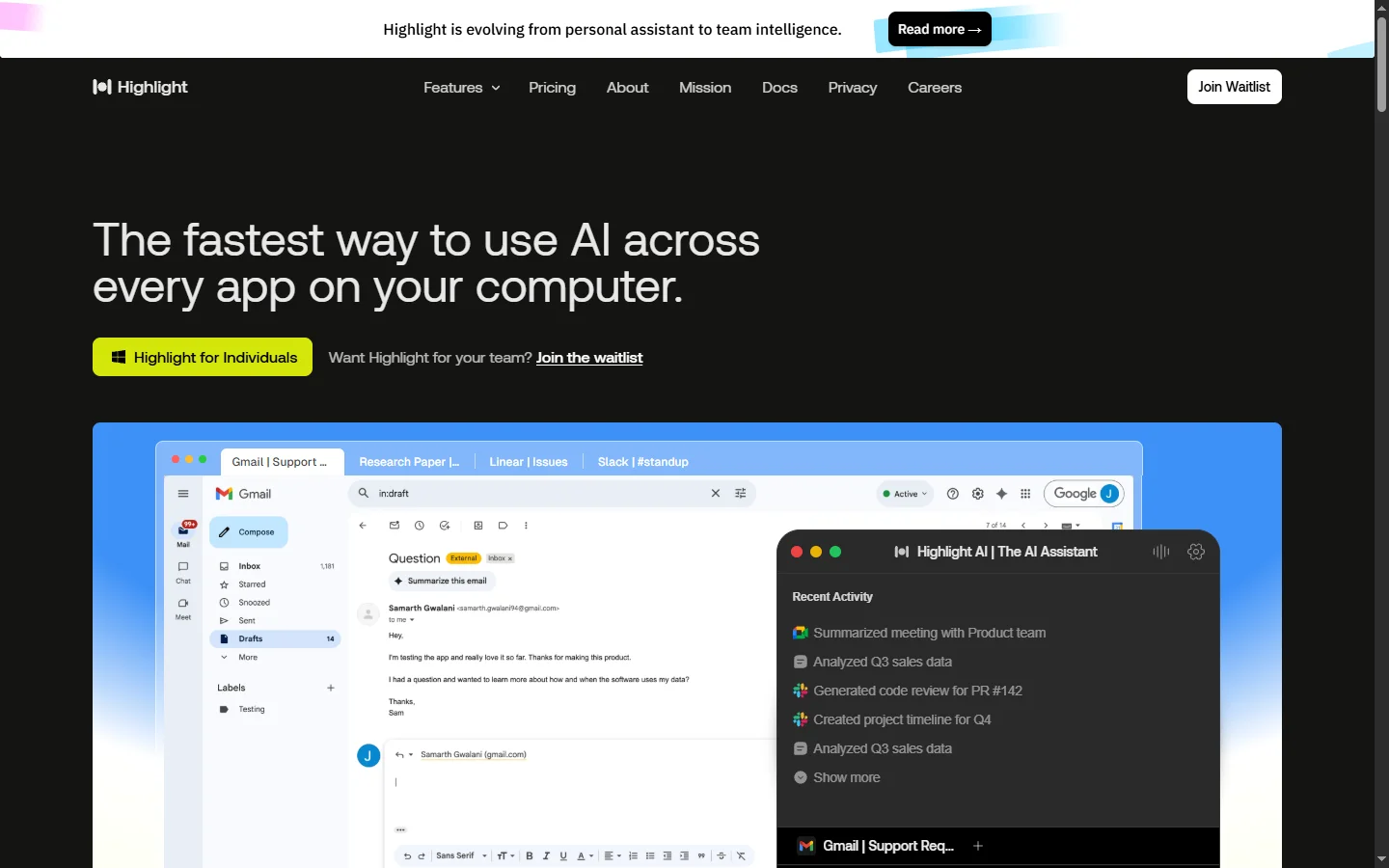
Highlight AI is a personal AI assistant that lives on your computer and understands what you are currently working on. Unlike chat-based assistants that require copying context into a separate window, Highlight observes your screen and microphone on demand, which lets it answer questions and take actions grounded in your current task. A single hotkey summons the assistant, which can see the active application, extract relevant context, and respond without the user pasting anything.
The app routes requests across multiple underlying models, including GPT-4-class models and open source options, automatically selecting the best model for the type of task. Users can build custom applets inside Highlight to automate specific workflows, such as summarizing meetings, drafting replies, or extracting action items from long documents. Context awareness extends to audio, where Highlight can transcribe calls or conversations the user is participating in and reference them in later questions. Privacy controls let users pause observation and delete recordings at any time.
Highlight AI serves knowledge workers who want AI support embedded in their day-to-day workflow rather than isolated in a chat tab. Early adopters include software developers, researchers, and consultants who switch between many applications and want an assistant that does not require context to be re-pasted each time. The app is free to download with a generous free tier and paid plans that unlock higher usage limits, more models, and custom applet capabilities.
⚡ Key Features of Highlight AI
Screen and Audio Context Awareness
Highlight AI can observe the active window on your screen and optionally transcribe your microphone, giving it immediate context for whatever question you ask. This removes the usual copy-paste step required with chat-based assistants. You can ask about the document you're reading, the error on your terminal, or the call you just had without describing it first. Observation is opt-in and can be paused instantly.
Universal Hotkey Invocation
A global hotkey summons Highlight from any application, so the assistant is always one keystroke away. This turns AI from a destination you visit into a utility always within reach. The quick invocation and dismissal pattern fits the rapid-fire cadence of real knowledge work. Users configure the hotkey to match their existing workflow.
Multi-Model Routing
Highlight routes requests to different models based on the task, such as code models for programming questions and reasoning models for complex analysis. Paid users can also choose models explicitly when they want specific behavior. This avoids locking the user into one provider and often produces better results than a single default model. The router is transparent about which model answered.
Custom Applets
Build custom applets for recurring tasks like meeting summaries, email drafting, or document extraction. Applets combine prompts, model choices, and data sources into reusable commands accessible through the hotkey. This is how power users transform Highlight from a generic assistant into a tailored productivity system. Applets can be shared across a team for consistent workflows.
Meeting and Call Transcription
Transcribe calls and meetings the user attends, then query the transcript naturally. Highlight can answer questions about what was discussed, extract action items, or draft follow-up emails based on the conversation. The transcription runs locally where possible for privacy. This rivals dedicated meeting-assistant tools while keeping everything in one interface.
Privacy Controls
Users can pause observation, delete recordings, and control which applications Highlight is allowed to see. Transcripts and screen captures are kept only as long as needed to answer questions, subject to user settings. These controls are essential given the assistant's access to sensitive information. Documentation explains the privacy model in plain language.
🎯 Use Cases for Highlight AI
⚖️ Highlight AI Pros & Cons
Advantages
- ✓Context awareness eliminates copy-paste for most AI interactions
- ✓Global hotkey keeps the assistant always accessible
- ✓Multi-model routing avoids single-provider lock-in
- ✓Meeting transcription adds value beyond typical chat assistants
- ✓Custom applets enable tailored productivity workflows
Drawbacks
- ✗Screen and audio observation requires strong trust in the vendor
- ✗Desktop-first design limits mobile usage
- ✗Model routing is less transparent than choosing models directly
- ✗Heavy local resource use on older machines
📖 How to Use Highlight AI
Download and install Highlight AI from highlightai.com on macOS or Windows.
Grant the requested permissions for screen observation and microphone access as appropriate.
Configure the global hotkey to match your preferred key combination.
Summon Highlight with the hotkey while working and ask questions about the current screen or a recorded call.
Build custom applets for your recurring tasks to speed up repeated workflows.
Review privacy settings regularly and pause observation when handling sensitive material.
❓ Highlight AI FAQ
Highlight AI offers a free tier with generous usage limits and paid plans for users who need more capacity, additional models, or advanced applet features. The app itself is free to download.
No. Observation happens only when the user summons Highlight and can be paused or revoked at any time. Users control which applications Highlight is allowed to see.
Highlight routes requests across multiple underlying models, including leading commercial models and open source options, choosing the best fit for each task. Paid users can select models explicitly when desired.
Yes. Highlight can transcribe calls and meetings the user attends and then answer questions about the transcript. Transcription runs locally where possible and is subject to the user's privacy settings.
Highlight provides privacy controls including per-app permissions, pause, and deletion. Users handling highly sensitive material should still review the privacy documentation carefully and consider what the assistant is allowed to see.
Related to Highlight AI

A2E AI
A2E AI productivity platform converts audio and video recordings into transcripts, summaries, and action items with speaker identification.

Abby AI
Abby AI is an AI therapy and mental wellness chatbot that offers CBT-informed conversations, mood tracking, and self-guided coping tools.

Abnormal AI
Abnormal AI uses behavioral AI to detect business email compromise, account takeover, and socially engineered phishing that bypasses secure email gateways.

Abridge AI
Abridge AI medical documentation platform that records and summarizes clinical conversations into structured physician notes in real time.

Accrete AI
Accrete AI builds autonomous enterprise AI agents for defense, government, and commercial intelligence workflows.

Ace AI
Ace AI is an AI-powered interview and career coach that helps job seekers prepare with mock interviews, resume feedback, and personalized career guidance.
Featured on WhatIf.ai
Add this badge to your website to show you're listed on WhatIf AI
Alternatives to Highlight AI
A2E AI
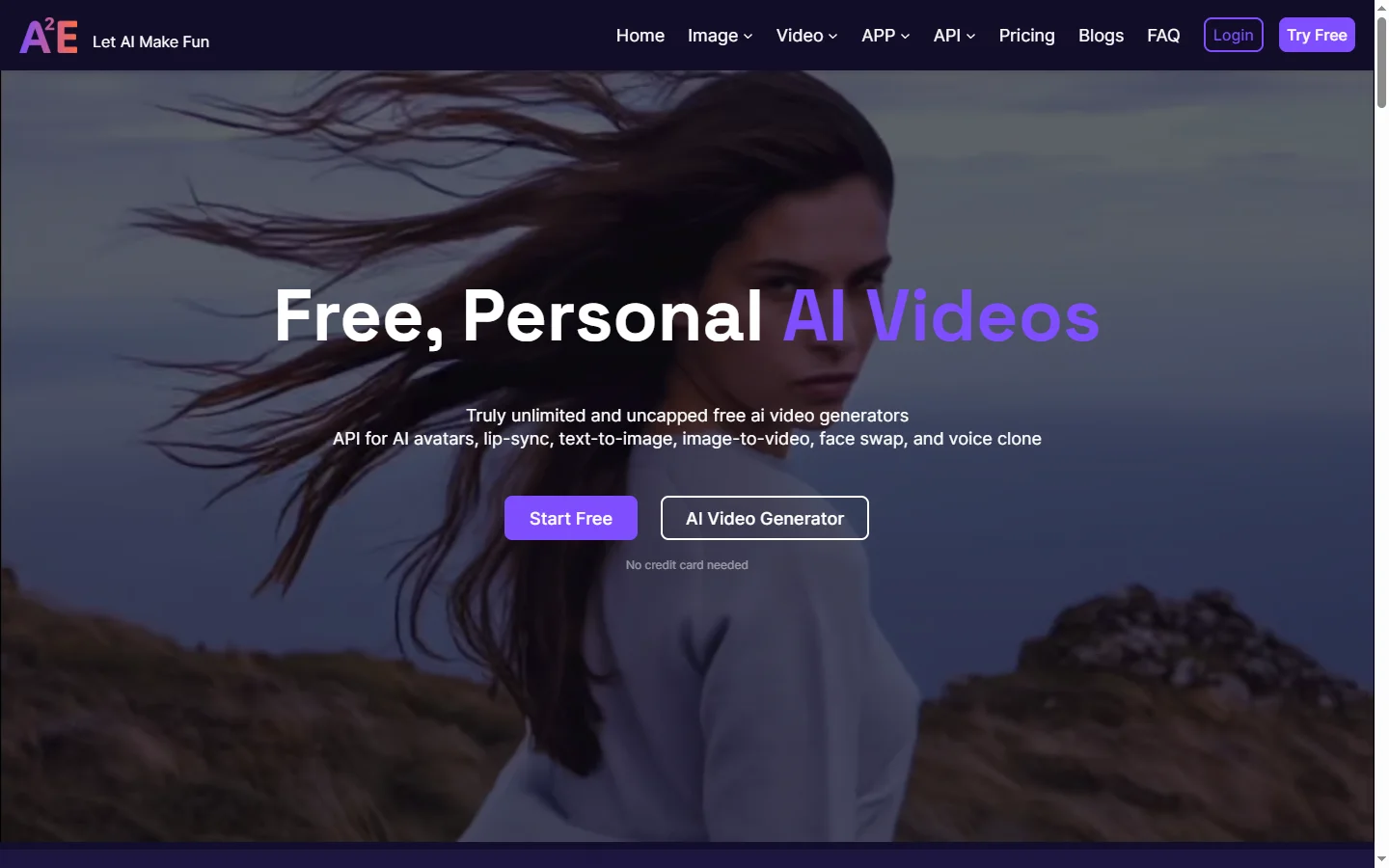
A2E AI productivity platform converts audio and video recordings into transcripts, summaries, and action items with speaker identification.
Abnormal AI
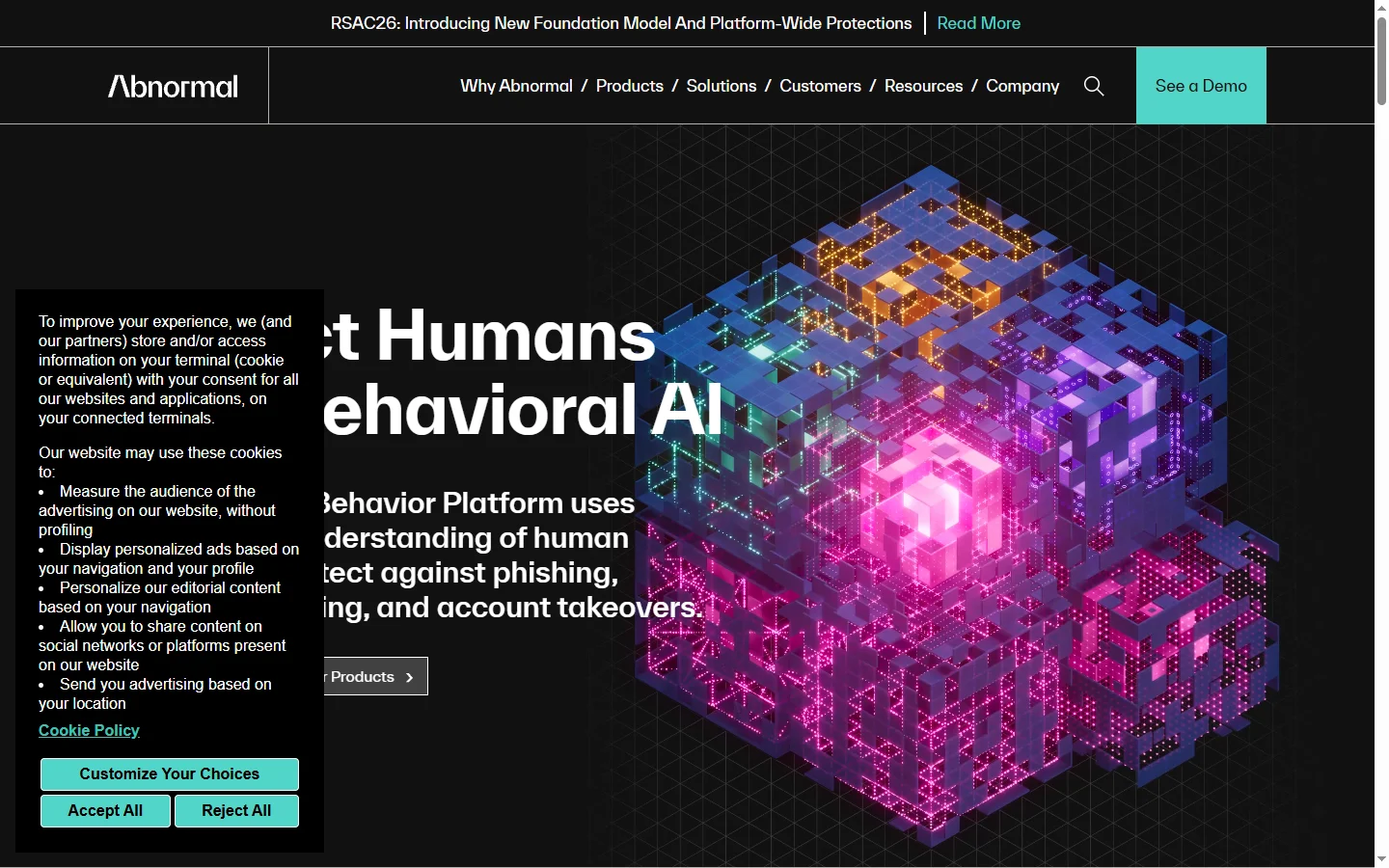
Abnormal AI uses behavioral AI to detect business email compromise, account takeover, and socially engineered phishing that bypasses secure email gateways.
Abridge AI
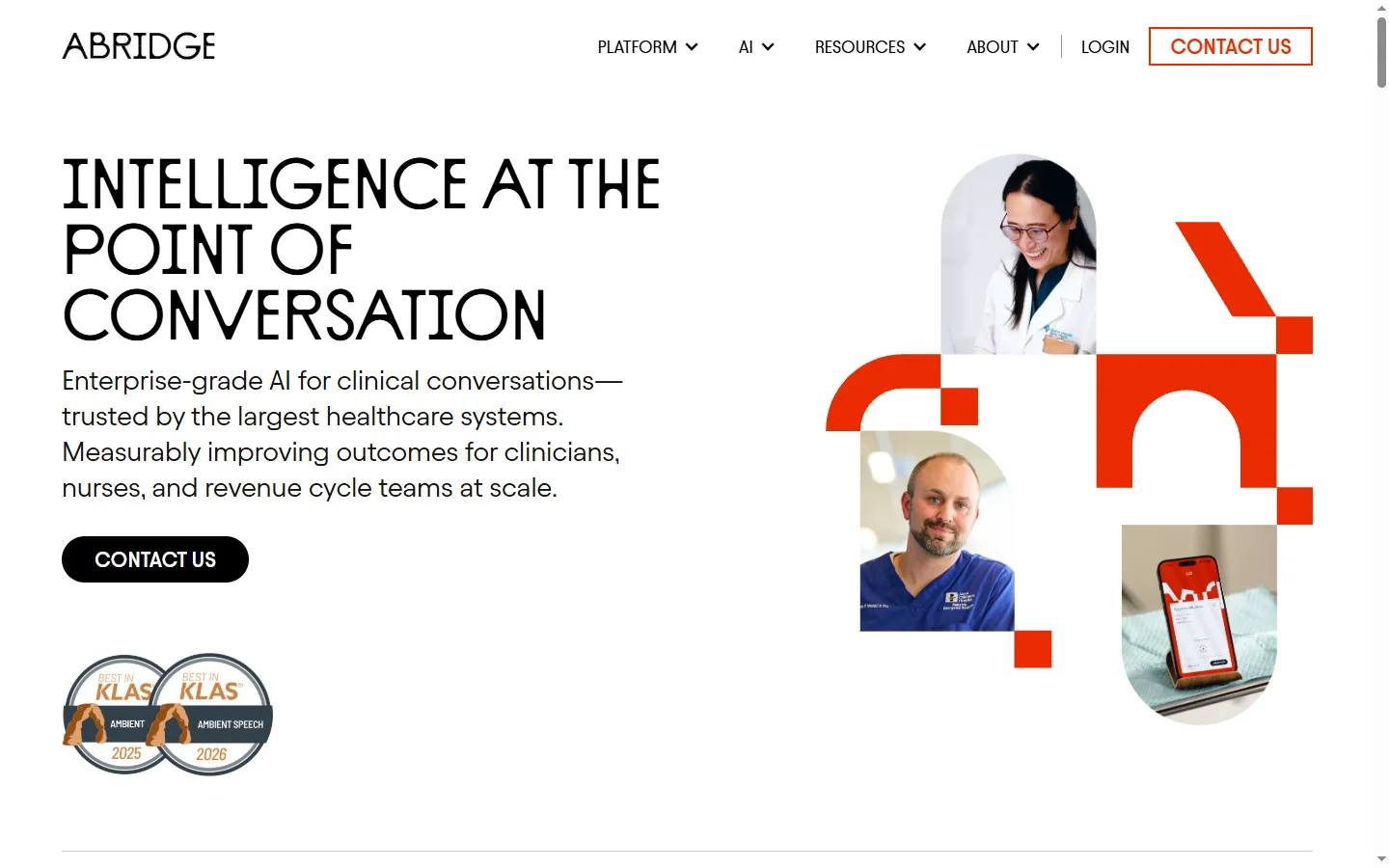
Abridge AI medical documentation platform that records and summarizes clinical conversations into structured physician notes in real time.

Air AI
Air AI conducts autonomous full-length AI phone calls for sales prospecting, appointment setting, and customer service without human agents.